Confirm intake is enabled.
Use only the address supplied for your organization. Forward selected supplier attachments from your email service. This workflow does not connect to or monitor a Gmail or Outlook inbox.


Forward supplier attachments for QuickBooks Online processing when email intake is enabled. Confirm the workspace, review the captured details, and approve the accounting handoff.
Confirm email intake and client assignment for your workspace before forwarding.Follow a sample attachment from forwarding to review.
This example assumes intake and client assignment are configured.
No signup needed for this demo.
The useful data is already on the attachment. Start there.
Local illustration with fictional files, fields and a non-deliverable address. Nothing is sent. Actual email intake requires confirmed setup and client assignment before review and QuickBooks sync. Check the setup requirements.
 REAL-LIFE PAPERWORK. LESS BACK-AND-FORTH.
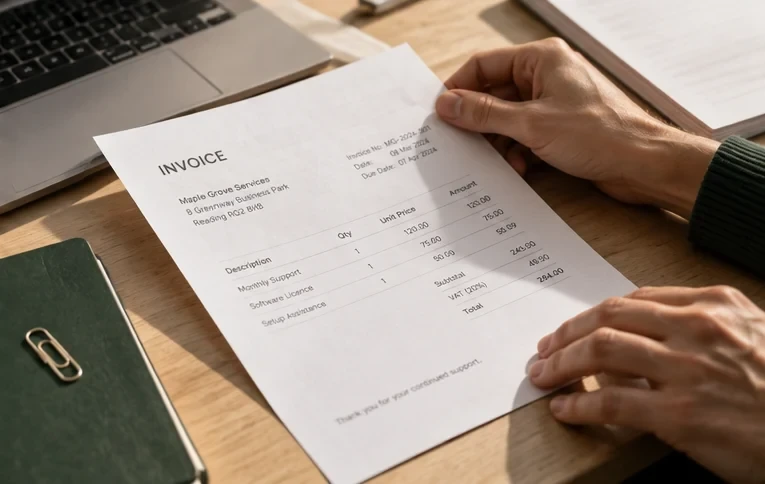
When intake is configured and the document is assigned to a client, review the extracted supplier, invoice number, date, totals and tax against the original attachment. Confirm the category, Bill or Expense record type, and QuickBooks Online company before approving sync.
Explore the review workflowEmail invoice capture for QuickBooks starts with confirmed setup. Ask support about availability, the organization address and client assignment, then test one readable attachment.
Check email setupUse only the address supplied for your organization. Forward selected supplier attachments from your email service. This workflow does not connect to or monitor a Gmail or Outlook inbox.
Defaults are PDF, JPEG, PNG and TIFF, up to 25 MiB per file. Confirm active limits and your email provider’s message limit. Every attachment counts toward the document allowance. Include the file itself; email text and cloud links are not document inputs.
The address routes to your organization, but intake does not automatically assign a client. Confirm a supported assignment process with support before using this workflow. The subject or message cannot choose a client or QuickBooks company.
New files are queued for extraction. Once client assignment is complete, review the captured details and original file, correct any errors, and resolve duplicate warnings. Approve the accounting record before starting sync; check transaction and attachment results afterward.
Missing a document? Check the address, file type, size and allowance. Empty files and invalid filenames are rejected. Earlier attachments may have been saved before a later file failed: confirm receipt and assignment with support before resending. Email delivery alone does not confirm extraction or QuickBooks sync.
When email intake is enabled, forward supplier attachments to the confirmed organization address. New files are stored and queued for extraction. The document must also be assigned to the correct client before you can review it, approve it and sync to that client’s QuickBooks Online company. Confirm availability and a supported client-assignment process with support before relying on this workflow.
For configured intake, the path is forwarding, receipt in the correct organization, extraction, client assignment, review, approval and then QuickBooks Online sync. Check the original attachment, supplier, invoice number, date, totals, tax, category and record type. An unpaid supplier invoice can be prepared as a Bill; a paid receipt follows the Expense workflow. Forwarding alone does not approve or create an accounting record.
The recipient address identifies the organization. Email intake does not automatically assign a document to a client, and naming a client in the subject or message does not route it there. Review and QuickBooks sync require client assignment. Confirm that this can be completed for your setup, then check the client’s connected QuickBooks company before approval.
No mailbox connection is part of this forwarding workflow. ScannerPilot does not scan a connected Gmail or Outlook inbox, continuously monitor messages or import historical email. Send supported attachments to the intake address only after the setup is confirmed.
Default intake formats are PDF, JPEG, PNG and TIFF, with a maximum of 25 MiB per file. Formats and size limits are configurable; your email provider may impose a lower message limit. Each attachment counts toward the organization’s document allowance. Empty files, unsupported formats, oversized files and invalid filenames are rejected. Include the actual file: cloud links and email body text are not supported document inputs.
Email intake compares the incoming file’s contents with stored document files in the same organization, before client assignment. An exact file match is stored with Duplicate status and is not queued for extraction again. Renaming the same file does not change its contents, but a new scan may differ. This check does not scan the QuickBooks ledger or guarantee that every repeat invoice will be detected.
Check that intake is enabled, the organization address is correct, and each attachment meets the active type, size and document limits. Confirm receipt and client assignment with support if a file is missing from your queue. Earlier attachments may have been saved before a later attachment failed, so check before resending. A sent email or delivery receipt does not confirm extraction, approval or QuickBooks sync; check those outcomes separately.
Keep the email. Lose the extra file handling.
Confirm email-intake availability for your workspace.